A Linux server running out of disk
space is one of the most common operational issues faced by system
administrators and DevOps engineers. Whether it's an application crash,
failed deployments, database errors, or a server refusing to boot, a
full disk can quickly turn into a production incident.
Why Disk Space Matters
When a filesystem reaches 100% utilization, several problems can occur:
- Applications fail to write data.
- Databases may stop accepting transactions.
- System logs stop updating.
- Package installations fail.
- Temporary files cannot be created.
- Performance may degrade significantly.
Instead of deleting files randomly, it's important to identify what is consuming the space.
Step 1: Check Filesystem Usage
The first ever command will show complete disk usage is:
df -h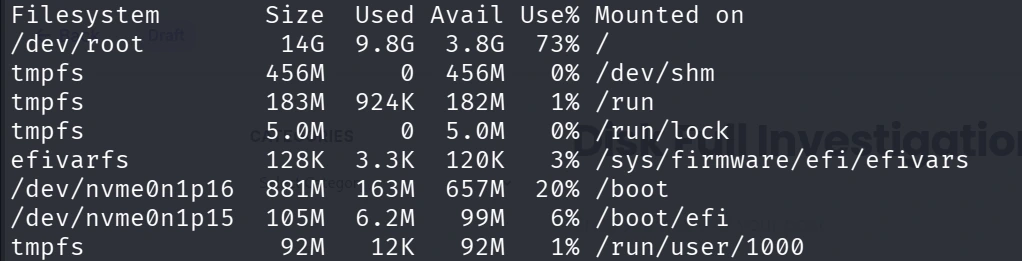
Understanding the output
- Size – Total filesystem size
- Used – Space currently used
- Avail – Remaining free space
- Use% – Percentage utilized
- Mounted on – Mount point
If / shows 100%, further investigation is required.
Step 2: Identify Large Directories
Move to the affected filesystem and execute:
du -sh /*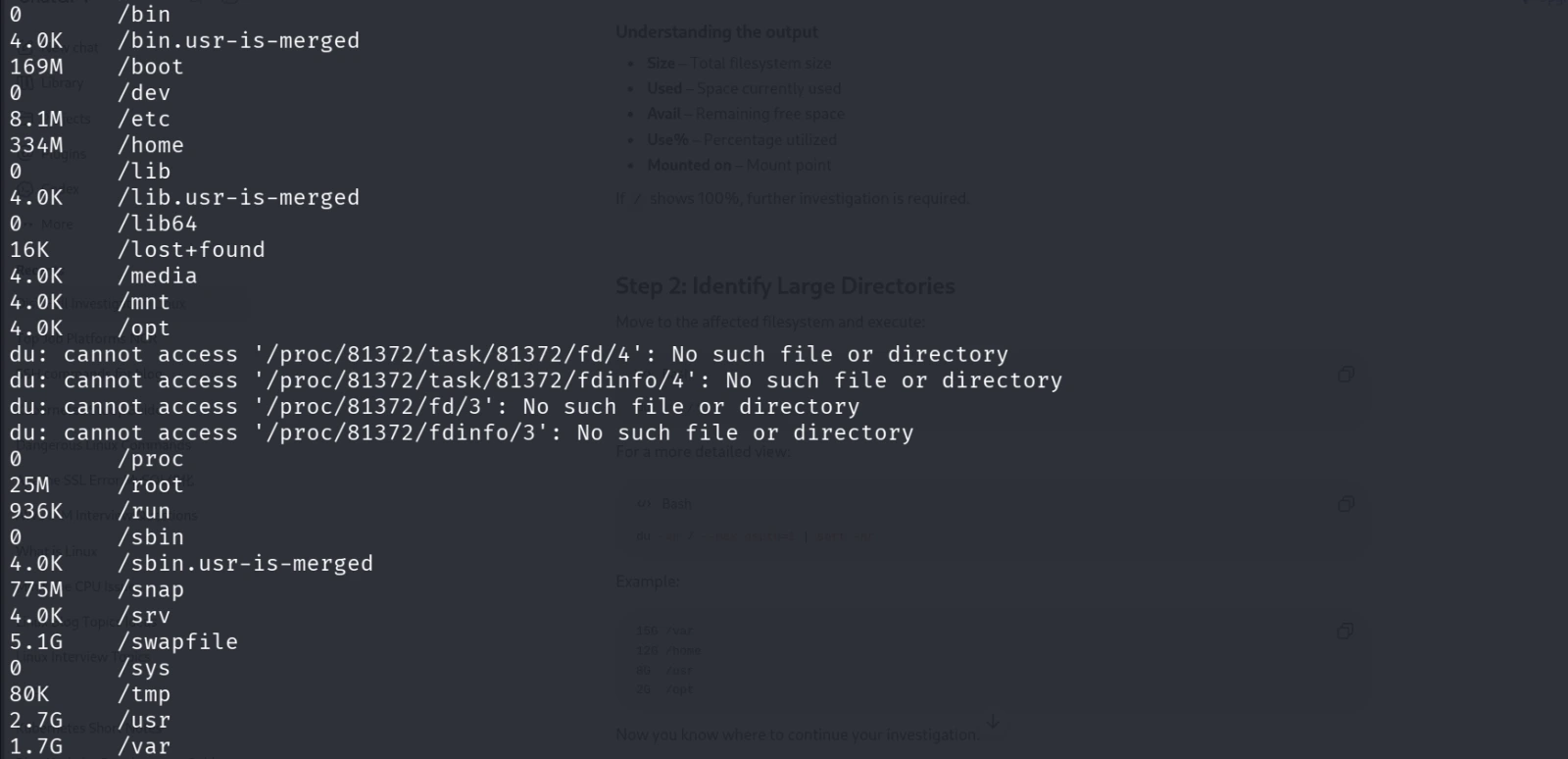
This will show all file system directory space.
For a more detailed view:
du -xh / --max-depth=1 | sort -hr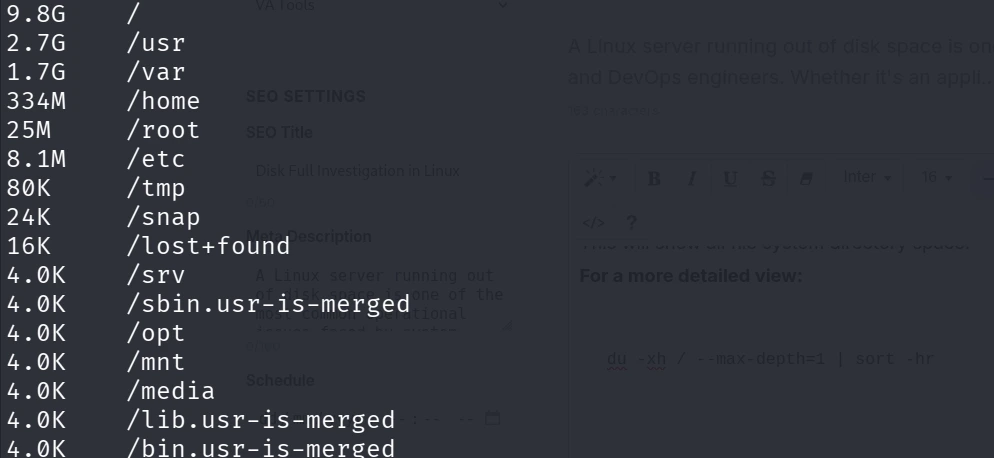
--max-depth option limits the depth of directory recursion
when using the du (disk usage) command. It stops the terminal from
flooding your screen with thousands of nested subdirectories, allowing
you to quickly isolate which top-level folders are hogging your storage
space.
Step 3: Drill Down into Large Directories
Suppose /var is consuming most of the storage.
du -xh /var --max-depth=1 | sort -hr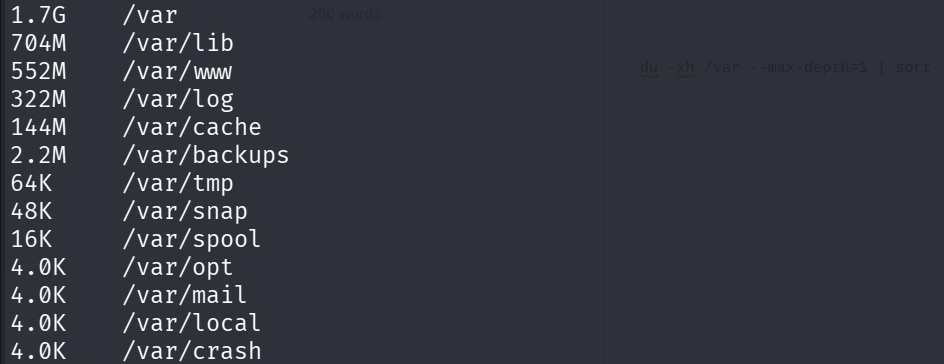
Continue drilling down until you locate the exact directory.
Step 4: Find the Largest Files
Locate files larger than 500 MB:
find / -type f -size +500M 2>/dev/nullOr list the largest files:
find / -type f -exec ls -lh {} \; 2>/dev/null | sort -k5 -hr | head -20Typical offenders include:
- Large log files
- Database dumps
- Backup archives
- Core dump files
- Temporary exports
Step 5: Check Log Files
Logs are one of the biggest reasons disks become full.Check log directory size:
du -sh /var/logFind the largest logs:
find /var/log -type f -exec ls -lh {} \; | sort -k5 -hr | headCheck systemd journal size:
journalctl --disk-usageReduce journal size:
journalctl --vacuum-size=500MStep 6: Investigate Deleted but Open Files
Sometimes a file has been deleted, yet its space is not released because a running process still holds it open.
Check:
lsof | grep deletedExample:
java 2314 appuser 10w REG 8,1 5.2G deleted
Restart the application or service to release the storage.
Step 7: Inspect Docker (If Installed)
Docker frequently consumes significant storage.
View usage:
docker system dfClean unused resources:
docker system pruneRemove unused images:
docker image prune -aStep 8: Check Package Cache
Ubuntu/Debian:
sudo apt autoremove -y
sudo apt autoclean
RHEL/CentOS:
sudo yum clean all
sudo dnf clean all
Step 9: Analyze Disk Usage Interactively
A favorite tool among Linux administrators is ncdu.
Ubuntu:
sudo apt install ncduRHEL:
sudo yum install ncduRun:
ncdu /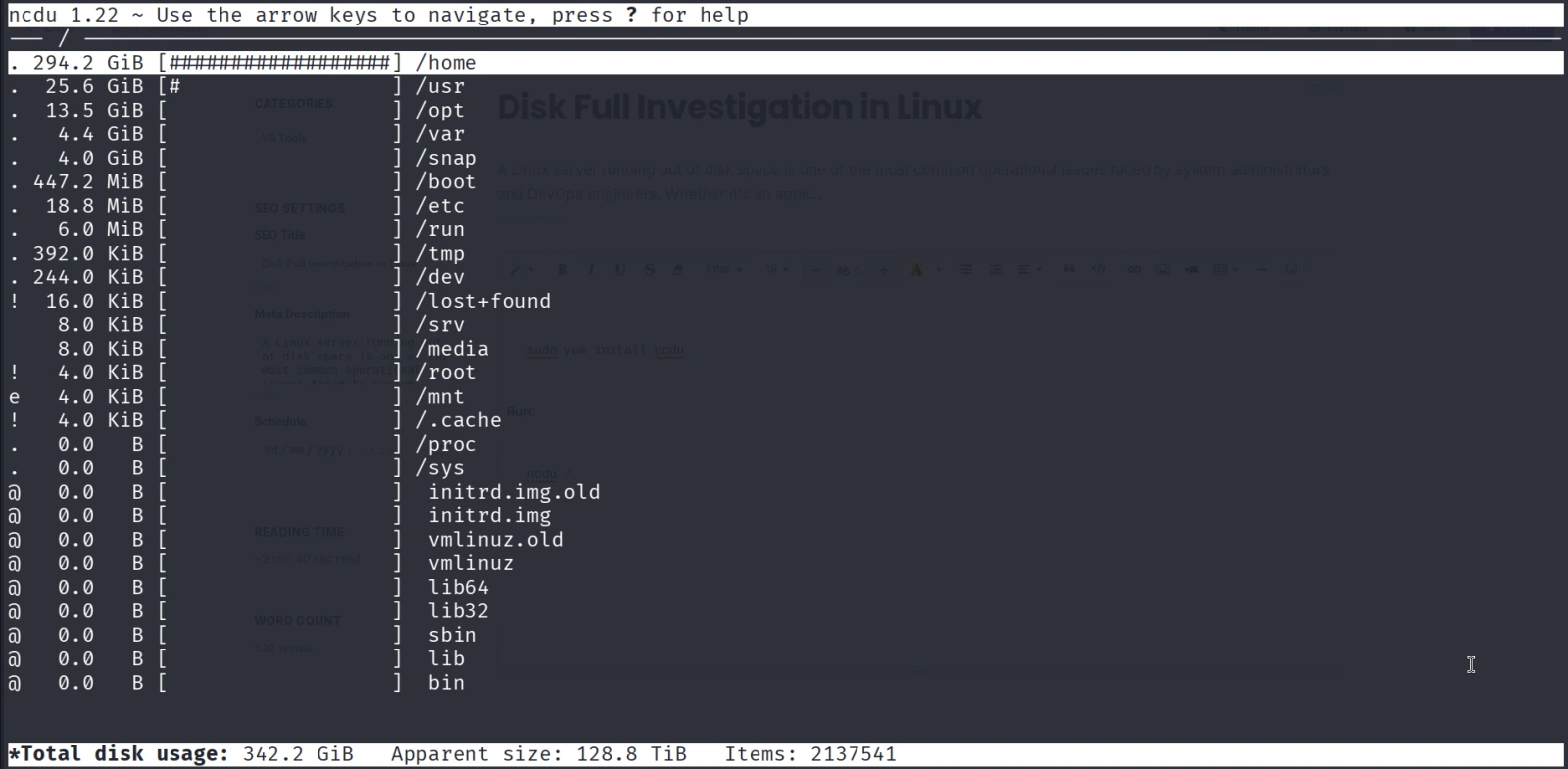
It provides an interactive interface for browsing large directories and identifying storage-heavy files.
Common Causes of Full Disks
| Cause | Symptoms | Solution |
|---|---|---|
| Log files | /var/log grows rapidly | Rotate or truncate logs |
| Docker images | Large /var/lib/docker | Prune unused images and containers |
| Backups | Old .tar, .gz, .zip files | Archive or remove obsolete backups |
| Databases | Growing data files | Archive data, optimize storage |
| Core dumps | Large core.* files | Remove old dumps, investigate crashes |
| Temporary files | /tmp or /var/tmp fills up | Clean unused temporary files |
No comments yet. Be the first to comment!